
1-Introduction:
This document provides guidance for the creation of a free trial account for Office 365 and its subsequent utilization for the Dynamics 365 Finance and Operations trial for practice purposes.
Given license is subscription based and has validity for 30 days with very minimal charge and can be extended.
Office 365 account provides access to power platform and Microsoft admin center.
Important Links:
| Microsoft Admin Portal | https://admin.microsoft.com/Adminportal/Home#/homepage |
| Power Platform Admin Portal | https://admin.powerplatform.microsoft.com/home |
| Install the Finance and Operations Provisioning app | https://learn.microsoft.com/en-us/power-platform/admin/unified-experience/tutorial-install-finance-operations-provisioning-app |
| Office 365 account | https://www.microsoft.com/en-in/microsoft-365/buy/compare-all-microsoft-365-products |
| Process to start trial (Common for ERP and CRM) | https://learn.microsoft.com/en-us/power-platform/admin/trial-environments |
| Link for all Trial creation (CRM and ERP business applications) | https://www.microsoft.com/en-us/dynamics-365/free-trial?msockid=0f037c802ef8634f254168f72f5e62ca |
Note: CRM and ERP modules trial can be created by clicking Try for free in given link above (Not applicable for FnO)

We need to have office 365 account to use for installation of Finance and Operations Provisioning app.
Three steps to be followed:
- Buy office 365 subscriptions and create work or school email address (ending with .onmicrosoft.com)
- Take subscription of D365 Finance and operations from Microsoft 365 admin center
- Install the Finance and Operations Provisioning app (power platform admin center)
2-Buy Office 365 Subscription:
Step1-To get 0365, login to https://www.microsoft.com/en-in/microsoft-365/buy/compare-all-microsoft-365-products
Click on “Try free for one month”
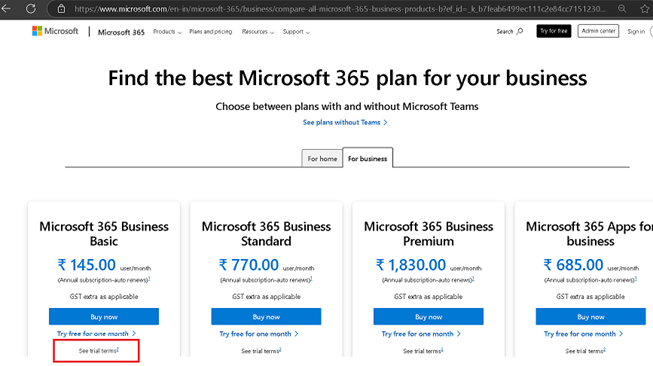
Step2-This open page asking work or school email, so once you enter any personal email like ending with Gmail etc, it suggests creating a new account.
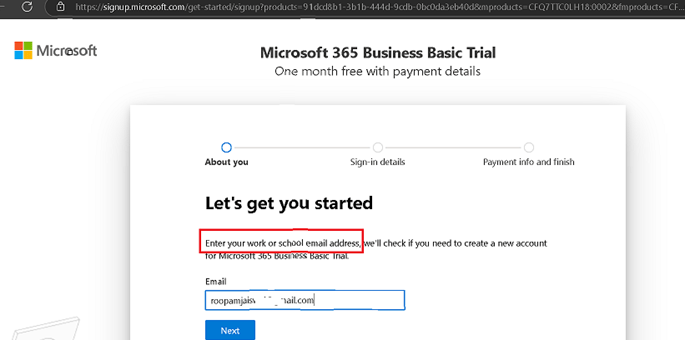
Step3-Click on Set up account

Step4-Enter all mandatory fields (*)

Step5- provide any below option to get a text or phone call for authorisation.
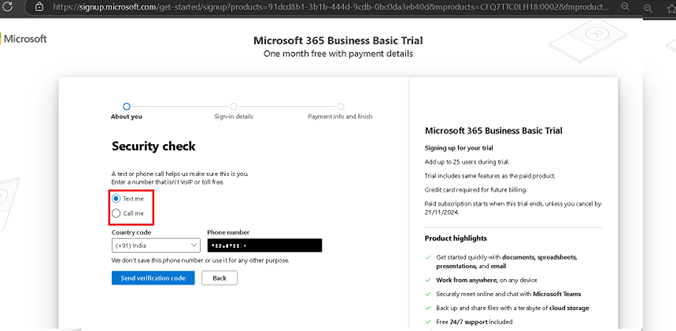
Step6-Verify code
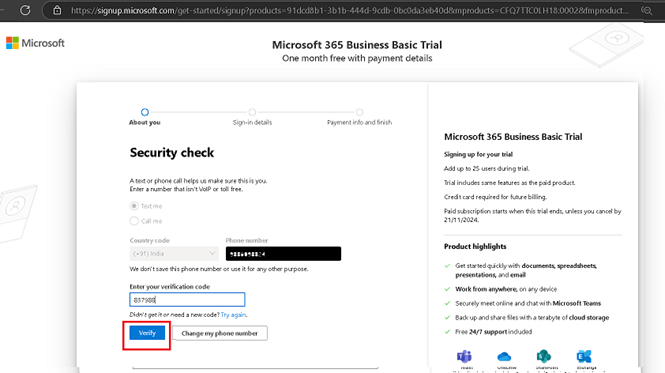
Step7- This is how the ID will be created where you will have Domain Name ending with .onmicrosoft.com
Dimain name should be unique.

Step8: Add paymnet method

Step9-Verify and save details
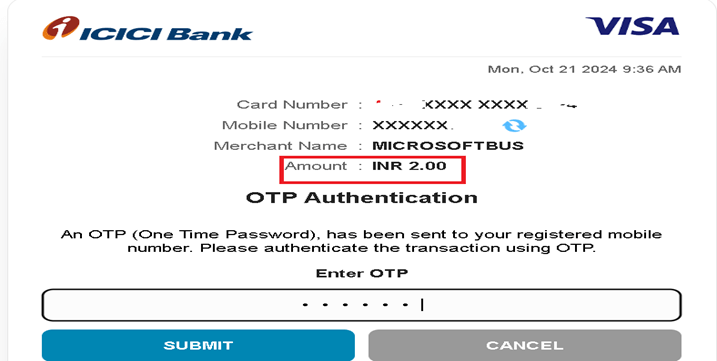

Step10-System will save TaxID, Address and Bank details.It deducts a nominal amount .
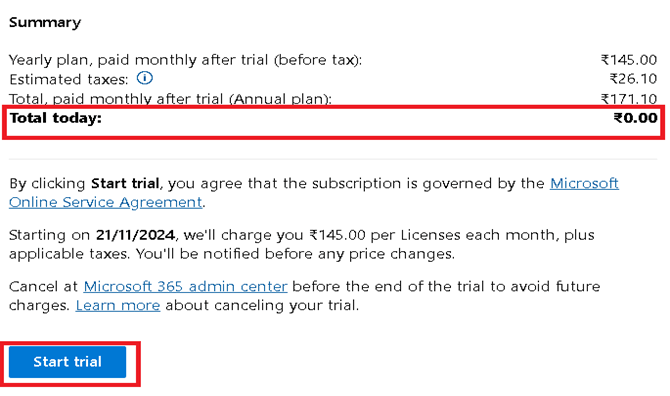
This is how work or school ID is created. Save this ID for future reference.

3-Get trial subscription of D365 Finance and operations from marketplace (Microsoft 365 admin center):
Step1- Click to see all Dynamics 365 products from marketplace of admin center portal

Step2- You can also enter finance in filter option to get the result. Select Dynamics 365 Finance Trial.
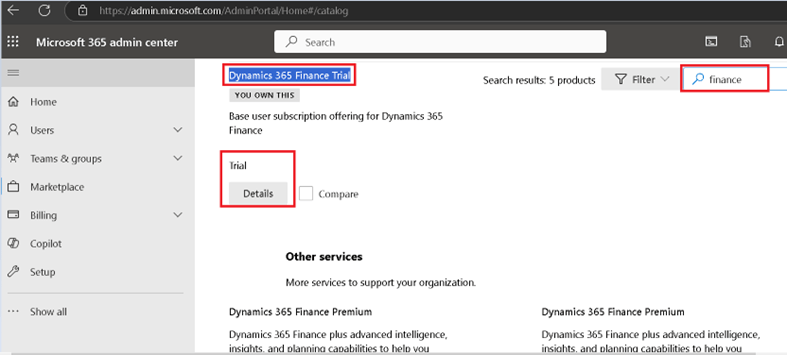
Click start for free.

Step3- Click on checkout to get order confirmation, it has no cost involved. and we get order receipt.


Step4- Click continue to go to user, subscriptions to see the licence available.

3-Install trial of Finance and Operations Provisioning app (power platform admin center)
Step1-Login to Environments | Power Platform admin center and click New.
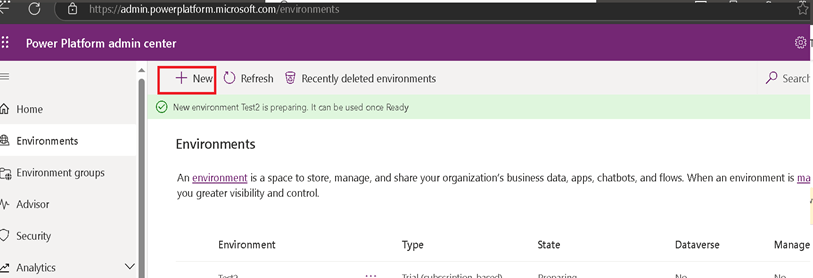
Step2-Give Name and mandate fields and save data to proceed Next. Type will be Trial (subscription based)
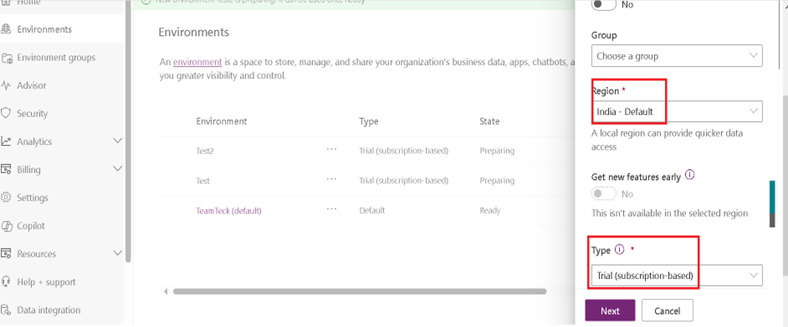
Language, Currency, security code to be there and Enable Dynamics 365 APP to select the Finance Trial from dropdown app.

This gives below option to deploy, select Finance (Preview) and save.

Step3-We get message
“New environment XXXXXXX is preparing. It can be used once Ready” This process takes time.(Can be within 60 minutes)
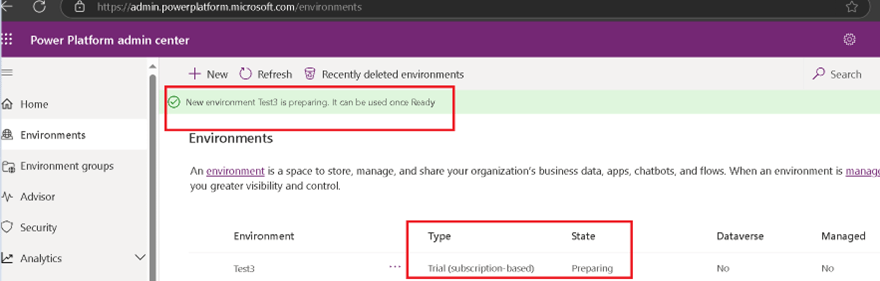
Once environment status is ready it will have hyperlink within that. Click on to get the Link.

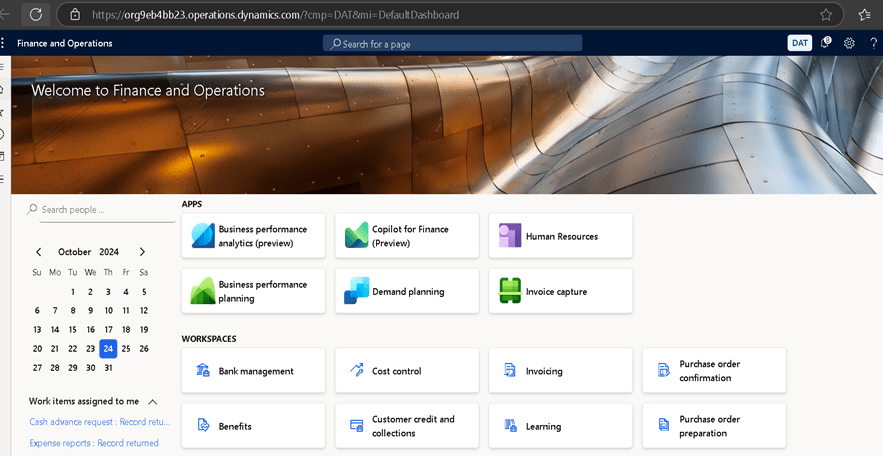
Once link opens change the Legal Entity to USMF so that we have sufficient data to practice.
Happy learning😊
 One step for all