Step4# Fixed Asset Disposal Journal

There are many paths to sell an asset, like free text invoice, disposal proposal and through Fixed Asset Disposal Journal.

let’s learn about Fixed Asset Disposal Journal to sell an asset.

  1. Go to Fixed assets > Journal entries > Fixed assets journal.
  2. Click New.
  3. In the list, mark the selected row.
  4. In the Name field select the journal.
  5. In the list, click the link in the selected row.
  6. Click Lines.
  7. In the list, mark the selected row.
  8. In the Transaction type field, select an option like disposal sale
  9. In the Account field, specify the desired values and verify all data like offset account, dimension etc.
  10. Simulate and post
  11. Click voucher to see transactions.

Journal entry: This will post credit amount to asset using an debit to offset account.

Step3# Acquire a fixed asset through fixed asset journal:

There are multiple ways to acquire fixed asset in Microsoft dynamics 365 finance and operations.

Some of examples are listed below.

1-From fixed asset journal

2-From Fixed asset Acquisition Proposal

2-From (purchase requisition) PR

3-From (Purchase Order) PO

4- From (Purchase Order) PO Invoice

5- From Non-PO Invoice etc.

Let’s us learn about fixed asset journal acquisition:

Note: fixed asset record should have been created manually before creating fixed asset journal.

Creation of asset does not have any impact on GL until we begin with acquiring and asset follows the cycle where we cannot depreciate the asset if not followed the acquisition method in system.

Scenerio1: Acquiring as Executive desk account number” FURN_FIX-000005” which for 110.00.

Journal entry: This will post debit amount to asset 110.00 using an credit to offset account.

As primary book 150_SLLR also has derived boon for Tax defined so posting will reflect in same that can be seen from voucher post transaction.

Lab:

  1. Go to Fixed assets > Journal entries > Fixed assets journal.
  2. Click New.
  3. Select the journal type that needs to be used for
  4. In the list, from selected row.
  5. Click Lines.
  6. Verify posting date, journal type and other fields.
  7. In the Account field, specify the Fixed Asset number to be acquired.
  8. In the Debit field, enter amount.
  9. Verify that offset account is defined.
  10. Click Financial dimensions>Account and verify the dimension.
  11. Click OK.
  12. Click Validate.
  13. Click Simulate posting.
  14. Click Post.
  15. Click Voucher to see the accounting entries.
  16. Go to Fixed Asset>inquiries and reports>fixed asset transactions to see all transactions.

Step 2# Fixed Asset books

As per law and for regulatory reporting, Companies should maintain more than one book for every fixed asset

That means that any transaction posted like an acquisition or disposal etc. will reflect in those books.

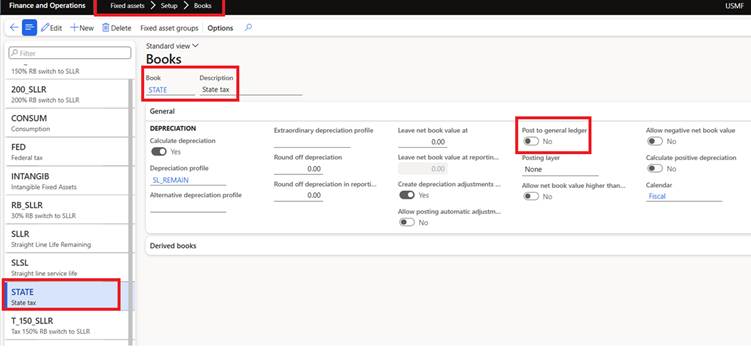
TAX Book: Books setup for Tax reporting with Post to general ledge is disabled and posting layer is None so that no posting happens at G/L level.

These are for TAX reporting purpose only.

Books

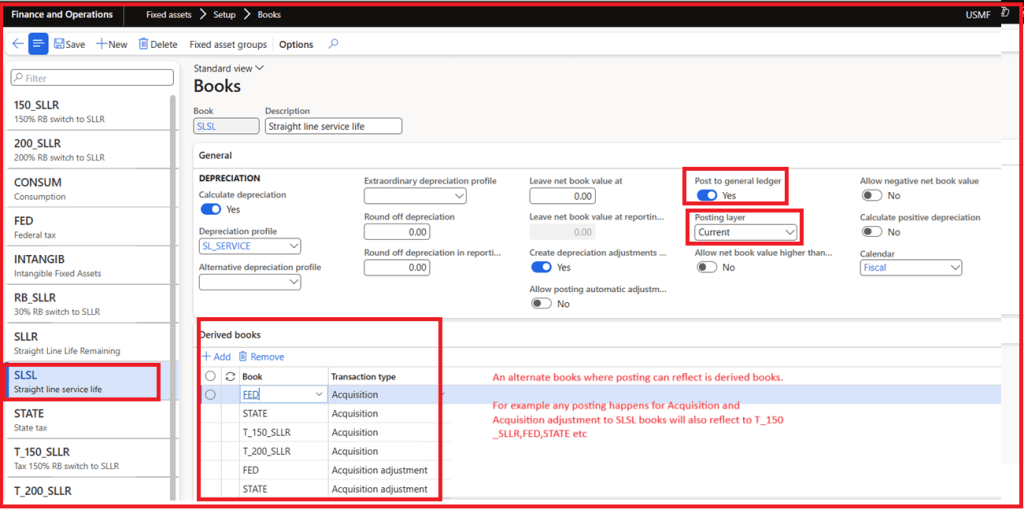
Operations/Current layer book: When we want FA transactions to be recorded in books, enable Post to general ledger and select the layer as needed like current or operation.

Books

Any posting done using this book SLSL will also post transactions to derived books.

Now post journal to see the transactions.

Fixed Asset Journal

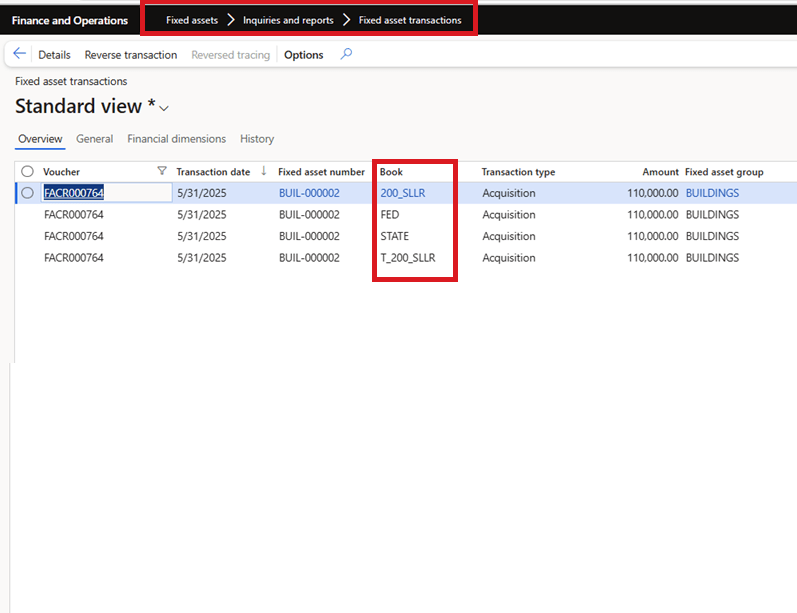
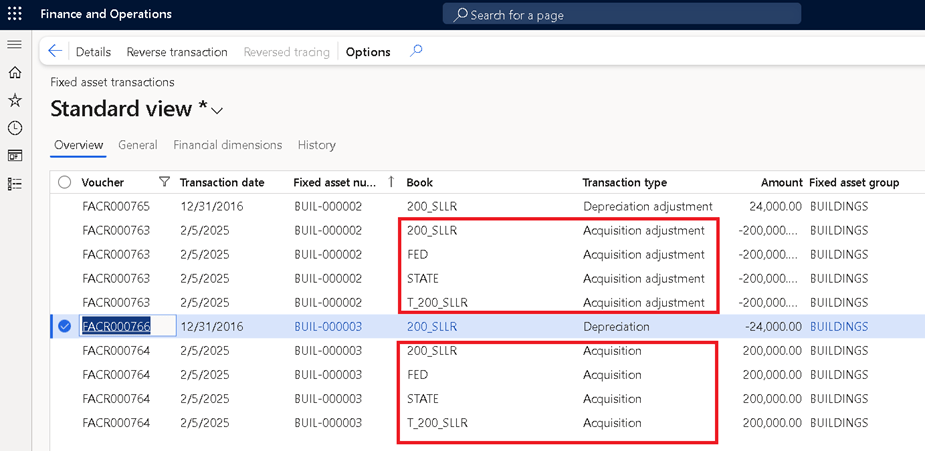
Verify the transactions in inquiries and reports to see posting impacted to multiple books because of derived books linkage.

Fixed Asset transactions
Summary:
Entry posted to primary books will also reflect in derived books if it is selected like we did posting using 200_SLLR but transactions are appearing at other derived books like FED, STATE and T_200_SLLR.

Dynamics 365 Finance 10.0.43 (March 2025)- Fixed assets

A-Introduction and enable:
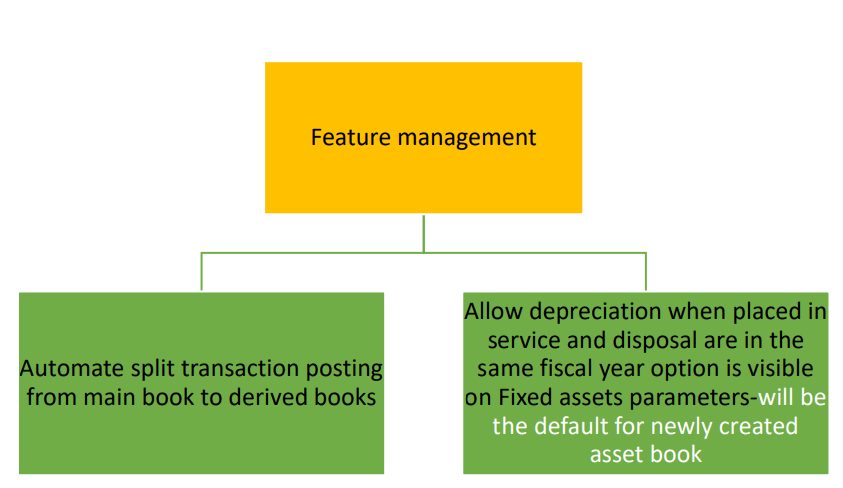
Feature enhancements for Fixed Assets included in this release are covered with Lab example

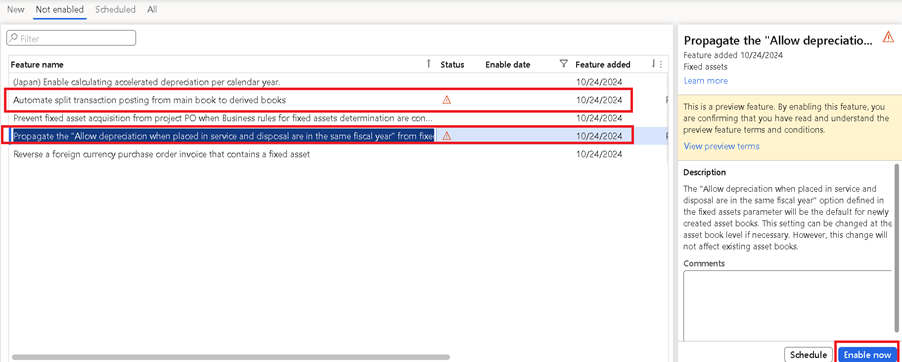
Login to FnO-Feature management: To enable feature.

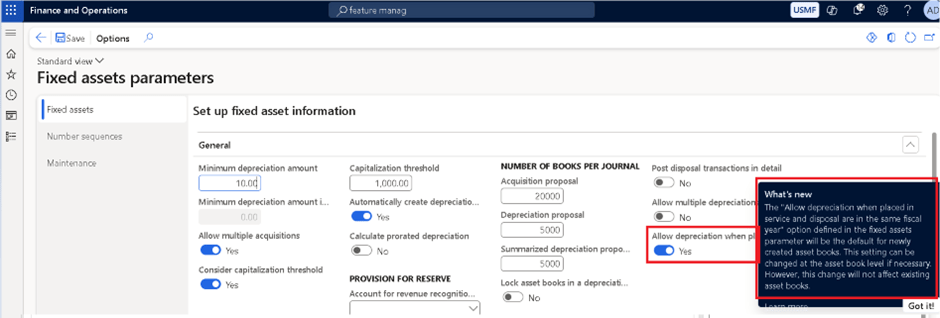
Once enabled Allow depreciation when placed in service and disposal are in the same fiscal year option is visible on Fixed assets parameters.

B-Lab: For Automate Split transaction posting to derived books

We will see an example of Split a percentage and posting to derived books

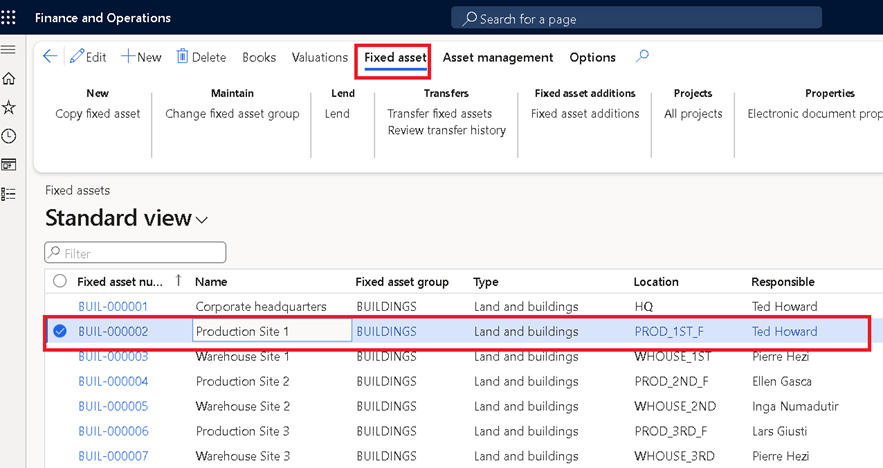
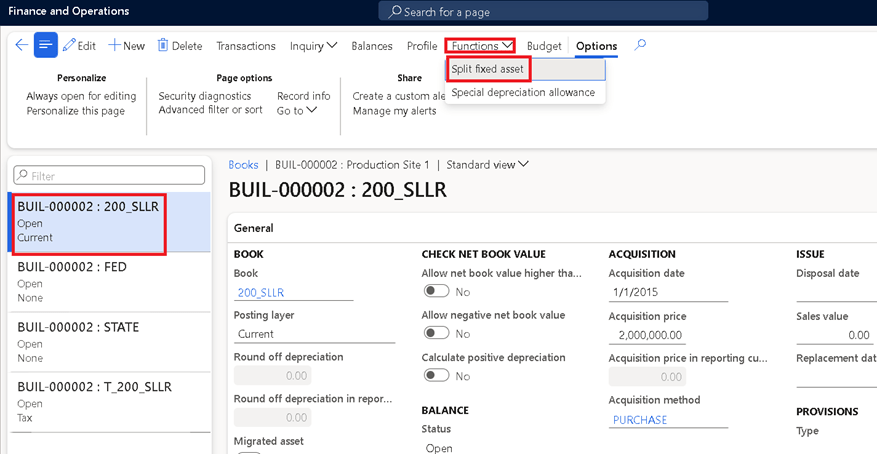
  1. Find and select the fixed asset to split.

2.Select Books. Select the book to split to the new asset and select Functions and select Split fixed asset.

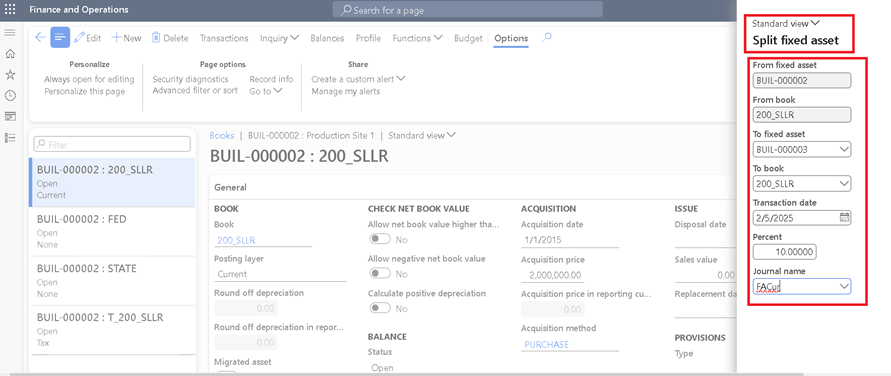
3. In the To fixed asset field, enter or select a value and In the To book field, select the drop-down button to open the lookup.

4.In the Transaction date field, enter a date.

5.In the Percent field, enter a number.

6.In the Journal name field, enter or select a value

    7, Select OK.

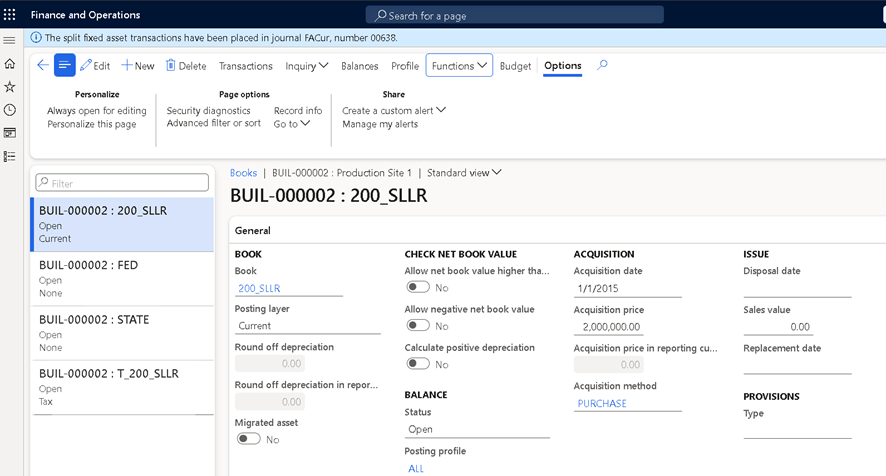
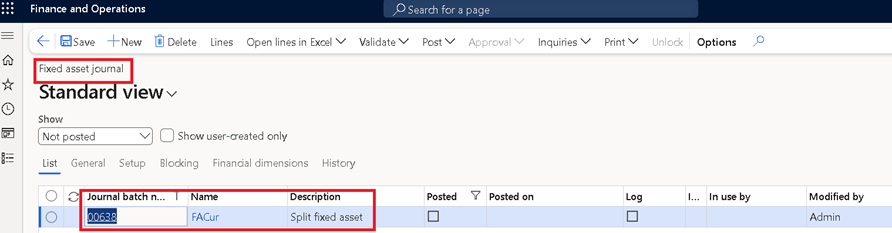
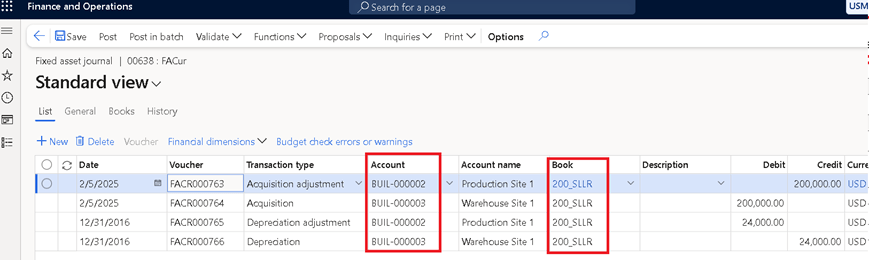
    8. Which creates FA Journal for review.

      9. Verify the lines and post transaction.

        Note: This shows the main book used for split transactions.

        Go to Fixed asset transactions and verify the journal entries.

        We see that for Acquisition and Acquisition adjustment transaction are booked to all the books (including derived).

        As Depreciation entries are not reflected in derived books it will not have extra entries.

        Thanks for reading.

        Create a Trial account for Dynamics 365 Finance and Operation                           

        1-Introduction:

        This document provides guidance for the creation of a free trial account for Office 365 and its subsequent utilization for the Dynamics 365 Finance and Operations trial for practice purposes.

        Given license is subscription based and has validity for 30 days with very minimal charge and can be extended.

        Office 365 account provides access to power platform and Microsoft admin center.

        Important Links:

        Microsoft Admin Portalhttps://admin.microsoft.com/Adminportal/Home#/homepage  
        Power Platform Admin Portalhttps://admin.powerplatform.microsoft.com/home  
        Install the Finance and Operations Provisioning apphttps://learn.microsoft.com/en-us/power-platform/admin/unified-experience/tutorial-install-finance-operations-provisioning-app
        Office 365 accounthttps://www.microsoft.com/en-in/microsoft-365/buy/compare-all-microsoft-365-products
        Process to start trial (Common for ERP and CRM)https://learn.microsoft.com/en-us/power-platform/admin/trial-environments  
        Link for all Trial creation (CRM and ERP business applications)https://www.microsoft.com/en-us/dynamics-365/free-trial?msockid=0f037c802ef8634f254168f72f5e62ca  

        Note: CRM and ERP modules trial can be created by clicking Try for free in given link above (Not applicable for FnO)         

        We need to have office 365 account to use for installation of Finance and Operations Provisioning app.

        Three steps to be followed:

        1. Buy office 365 subscriptions and create work or school email address (ending with .onmicrosoft.com)
        2. Take subscription of D365 Finance and operations from Microsoft 365 admin center
        3. Install the Finance and Operations Provisioning app (power platform admin center)

        2-Buy Office 365 Subscription:

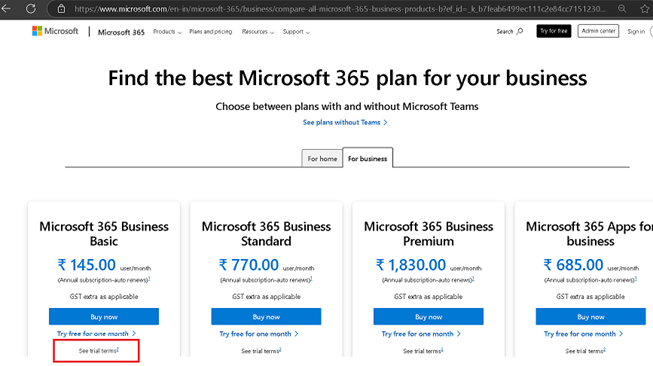
        Step1-To get 0365, login to https://www.microsoft.com/en-in/microsoft-365/buy/compare-all-microsoft-365-products

        Click on “Try free for one month”

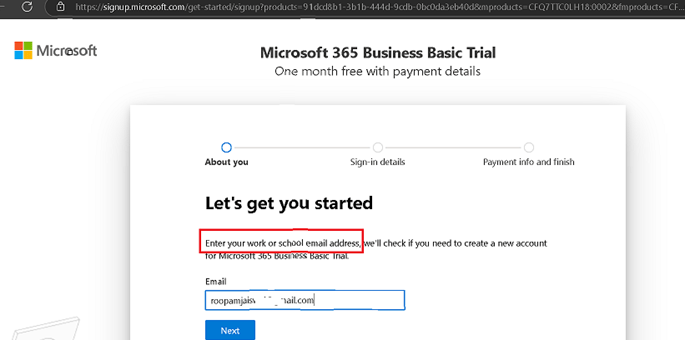
        Step2-This open page asking work or school email, so once you enter any personal email like ending with Gmail etc, it suggests creating a new account.

        Step3-Click on Set up account


        Step4-Enter all mandatory fields (*)

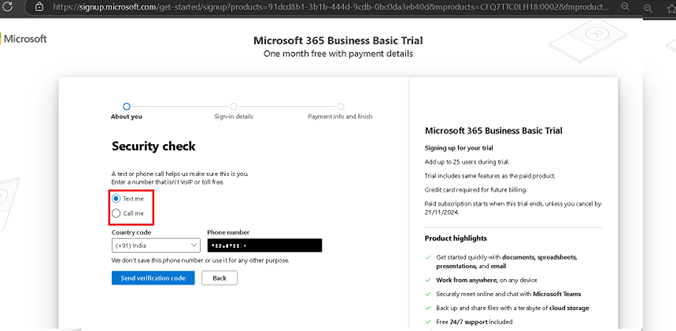
        Step5- provide any below option to get a text or phone call for authorisation.

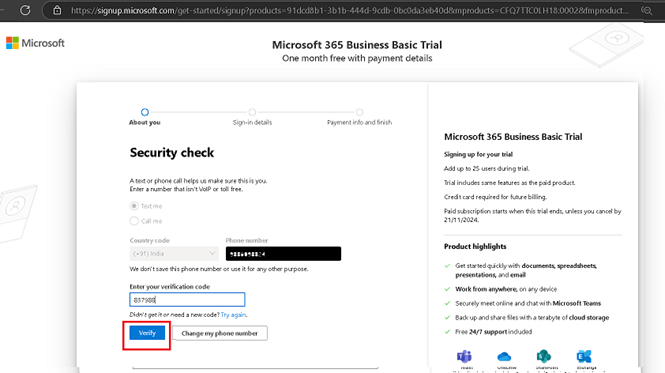
        Step6-Verify code

        Step7- This is how the ID will be created where you will have Domain Name ending with .onmicrosoft.com

        Dimain name should be unique.

        Step8: Add paymnet method

        Step9-Verify and save details

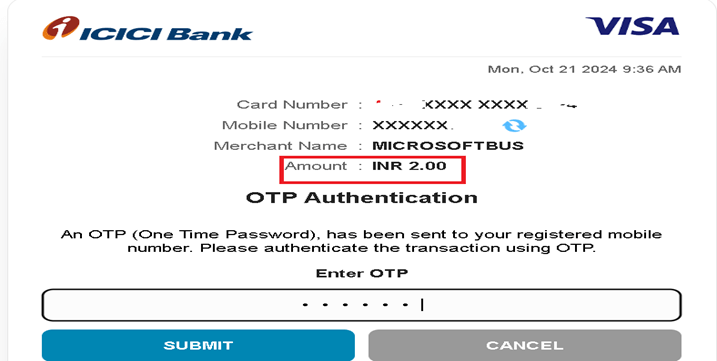
        Step10-System will save TaxID, Address and Bank details.It deducts a nominal amount .

        This is how work or school ID is created. Save this ID for future reference.

        3-Get trial subscription of D365 Finance and operations from marketplace (Microsoft 365 admin center):

        Step1- Click to see all Dynamics 365 products from marketplace of admin center portal

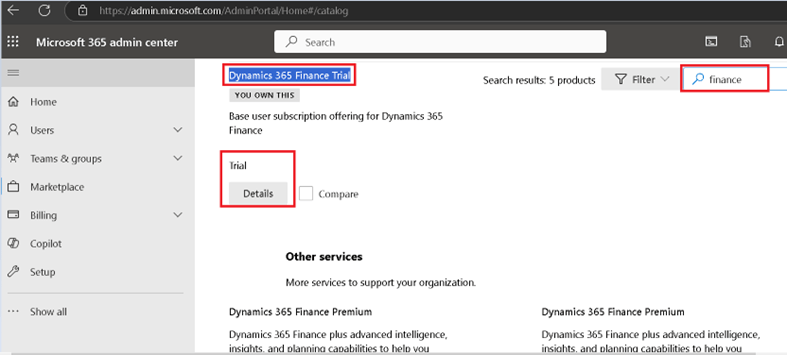
        Step2- You can also enter finance in filter option to get the result. Select Dynamics 365 Finance Trial.

        Click start for free.

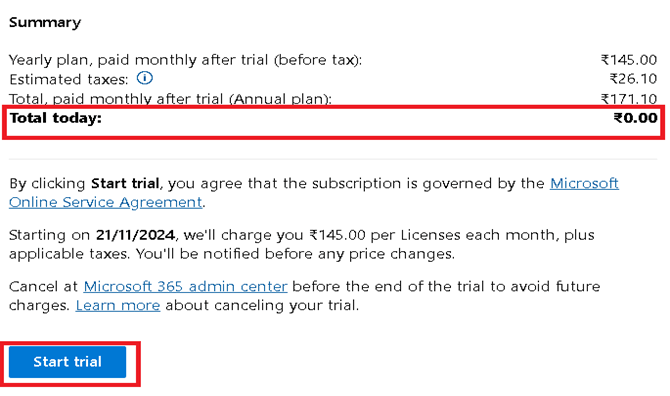
        Step3- Click on checkout to get order confirmation, it has no cost involved. and we get order receipt.

        Step4- Click continue to go to user, subscriptions to see the licence available.

        3-Install trial of Finance and Operations Provisioning app (power platform admin center)

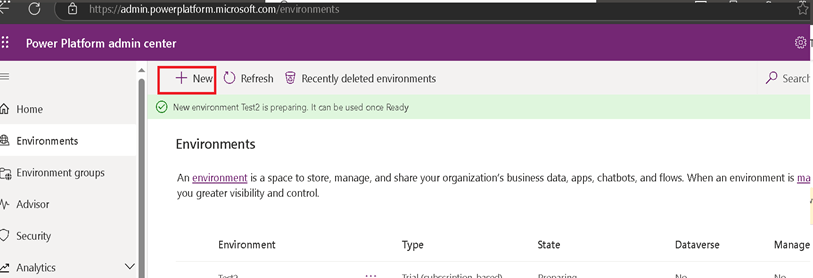
        Step1-Login to Environments | Power Platform admin center and click New.

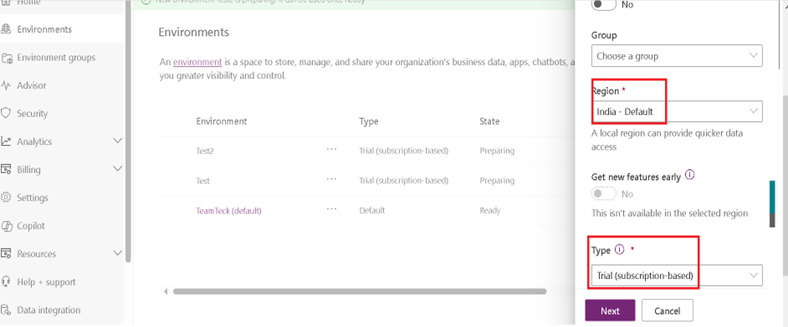
        Step2-Give Name and mandate fields and save data to proceed Next. Type will be Trial (subscription based)

        Language, Currency, security code to be there and Enable Dynamics 365 APP to select the Finance Trial from dropdown app.

        This gives below option to deploy, select Finance (Preview) and save.

        Step3-We get message

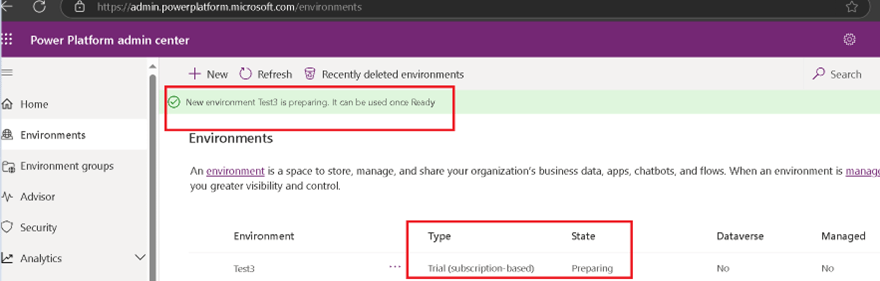
        “New environment XXXXXXX is preparing. It can be used once Ready” This process takes time.(Can be within 60 minutes)

        Once environment status is ready it will have hyperlink within that. Click on to get the Link.

        Once link opens change the Legal Entity to USMF so that we have sufficient data to practice.

        Happy learning😊

        Create a Trial account for Dynamics 365 Finance and Operation                           

        1-Introduction:

        This document provides guidance for the creation of a free trial account for Office 365 and its subsequent utilization for the Dynamics 365 Finance and Operations trial for practice purposes.

        Given license is subscription based and has validity for 30 days with very minimal charge and can be extended.

        Office 365 account provides access to power platform and Microsoft admin center.

        Important Links:

        Microsoft Admin Portalhttps://admin.microsoft.com/Adminportal/Home#/homepage  
        Power Platform Admin Portalhttps://admin.powerplatform.microsoft.com/home  
        Install the Finance and Operations Provisioning apphttps://learn.microsoft.com/en-us/power-platform/admin/unified-experience/tutorial-install-finance-operations-provisioning-app
        Office 365 accounthttp://www.microsoft.com › Office 365
        Process to start trial (Common for ERP and CRM)https://learn.microsoft.com/en-us/power-platform/admin/trial-environments  
        Link for all Trial creation (CRM and ERP business applications)https://www.microsoft.com/en-us/dynamics-365/free-trial?msockid=0f037c802ef8634f254168f72f5e62ca  

        Note: CRM and ERP modules trial can be created by clicking Try for free in given link above (Not applicable for FnO)         

        We need to have office 365 account to use for installation of Finance and Operations Provisioning app.

        Three steps to be followed:

        1. Buy office 365 subscriptions and create work or school email address (ending with .onmicrosoft.com)
        2. Take subscription of D365 Finance and operations from Microsoft 365 admin center
        3. Install the Finance and Operations Provisioning app (power platform admin center)

        2-Buy Office 365 Subscription

        Step1-To get 0365, login to http://www.microsoft.com › Office 365.

        Click on “Try free for one month”

        Step2-This open page asking work or school email, so once you enter any personal email like ending with Gmail etc, it suggests creating a new account.

        Step3-Click on Set up account


        Step4-Enter all mandatory fields (*)

        Step5- provide any below option to get a text or phone call for authorisation.

        Step6-Verify code

        Step7- This is how the ID will be created where you will have Domain Name ending with .onmicrosoft.com

        Dimain name should be unique.

        Step8: Add paymnet method

        Step9-Verify and save details

        Step10-System will save TaxID, Address and Bank details.It deducts a nominal amount .

        This is how work or school ID is created. Save this ID for future reference.

        3-Get trial subscription of D365 Finance and operations from marketplace (Microsoft 365 admin center)

        Step1- Click to see all Dynamics 365 products from marketplace of admin center portal

        Step2- You can also enter finance in filter option to get the result. Select Dynamics 365 Finance Trial.

        Click start for free.

        Step3- Click on checkout to get order confirmation, it has no cost involved. and we get order receipt.

        Step4- Click continue to go to user, subscriptions to see the licence available.

        3-Install trial of Finance and Operations Provisioning app (power platform admin center)

        Step1-Login to Environments | Power Platform admin center and click New.

        Step2-Give Name and mandate fields and save data to proceed Next. Type will be Trial (subscription based)

        Language, Currency, security code to be there and Enable Dynamics 365 APP to select the Finance Trial from dropdown app.

        This gives below option to deploy, select Finance (Preview) and save.

        Step3-We get message

        “New environment XXXXXXX is preparing. It can be used once Ready” This process takes time.(Can be within 60 minutes)

        Once environment status is ready it will have hyperlink within that. Click on to get the Link.

        Once link opens change the Legal Entity to USMF so that we have sufficient data to practice.

        Happy learning😊

        General Ledger Vs. Sub Ledger

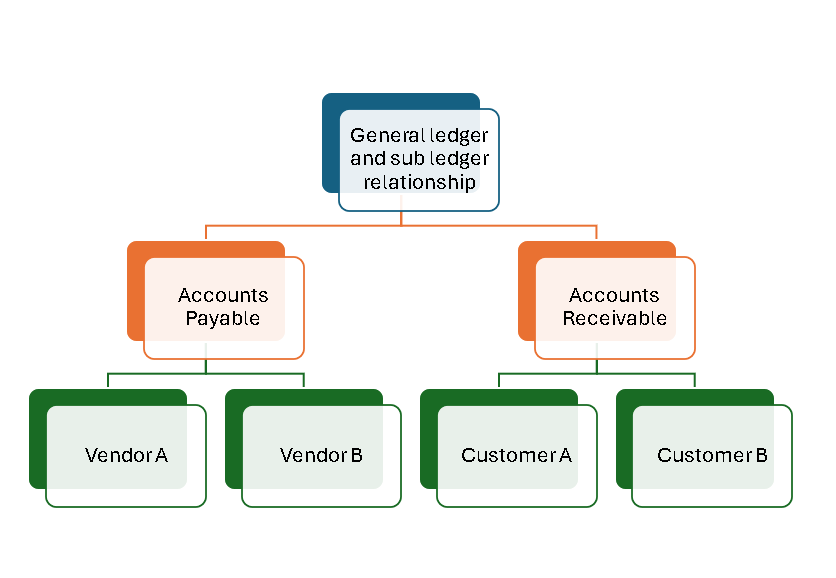
        The general ledger is a collection of the group of accounts that supports the value items shown in the major financial statements. All transactions that have financial impact only need to be recorded in General ledger

        This module includes:

        • Need for General Ledger.
        • What are Sub-ledgers?
        • How do Sub-ledgers provide data to General Ledger?

        Need for General Ledger

        The main purpose of a general ledger system is to record financial activity of a company and to produce financial and management reports to help stakeholders make decisions.

        For any company that has large number of transactions, putting all the details in the general ledger is not feasible. Hence it needs be supported by one or more subsidiary ledgers that provide details for accounts in the general ledger.

        General Ledger Vs. Sub Ledger

        A subsidiary ledger is a group of similar accounts whose combined balances equal the balance in a specific general ledger account.

        Balances in General Ledger are often supported by various sub ledgers. Subsidiary Ledgers facilitate recording of complete financial and other information related to the transaction.

        Example

        If a company does not maintain the Sub Ledgers and keeps all the information in the General Ledger, imagine what will be the size of your General Ledger, if you have 8000 customer accounts, 4000 supplier accounts and, 2000 items you trade in. On an average you enter into 5000 different transactions with your suppliers and customers who are spread across the globe. Even company has multiple Fixed Assets and Banks accounts that needs subledger and ledger concept.

        In the Fixed Assets Subsidiary Ledger you can find all the details pertaining to fixed assets owned by the company. Apart from the financial details like cost of the assets, other information like date of purchase, date when asset was put to use in business, name of the supplier and storage location etc. is also captured in subsidiary ledgers.

        An accounts receivable (AR) subsidiary ledger includes a separate account for each customer who makes credit purchases. The combined balance of every account in this subsidiary ledger equals the balance of accounts receivable in the general ledger.

        The combined balance of every account in this subsidiary ledger equals the balance of accounts receivable in the general ledger. Subsidiary ledgers contain supplemental accounts that provide the detail to support the balance in a control account. Subsidiary ledgers also capture details pertaining to financial transactions

        The general ledger account that summarizes a subsidiary ledger’s account balances is called a Control Account or master account.

        Accounting transactions are captured in General Ledger at a summarized level and all relevant details for that transaction are available in the subsidiary ledger

        Best Practices

        Primary basis for best practices is simplification in order to achieve an enhanced level of efficiency. The two best practices that follow this approach are.

        • Restructuring the general ledger to allow for the use of activity-based costing
        • Using it as a data warehouse

        Record to Report Interview questions

        All accrual entries are generally auto reversal entries. Validate the statement
        Gain on sale of assets is nothing but the business income. Validate the statement
        R2R is the heart of any accounting process. Functions like AP, AR,Payroll and T&E ultimately roll into R2R. Validate the statement
        Human resources are treated as the resources of the business. If so, even these resources have to be shown in the Balance sheet. But in practice, they are not shown based on one accounting convention. Name the convention.
        1. Difference between Provision and Reserves
        2. Cash and accrual method of transaction meaning
        3. Why Retained earnings account is required
        4. Types of account and golden rules of it
        5. Detailed explanation of General ledger and subsidiary ledger
        6. Prepaid and accrual journal entries
        7. What is tanglible and intangible assets

        8. Depreciation on revaluation is done?
        9.what is Impairment of assets?
        10.What are the types of business transactions in accounting

        11.What is Chart of account?